SALE
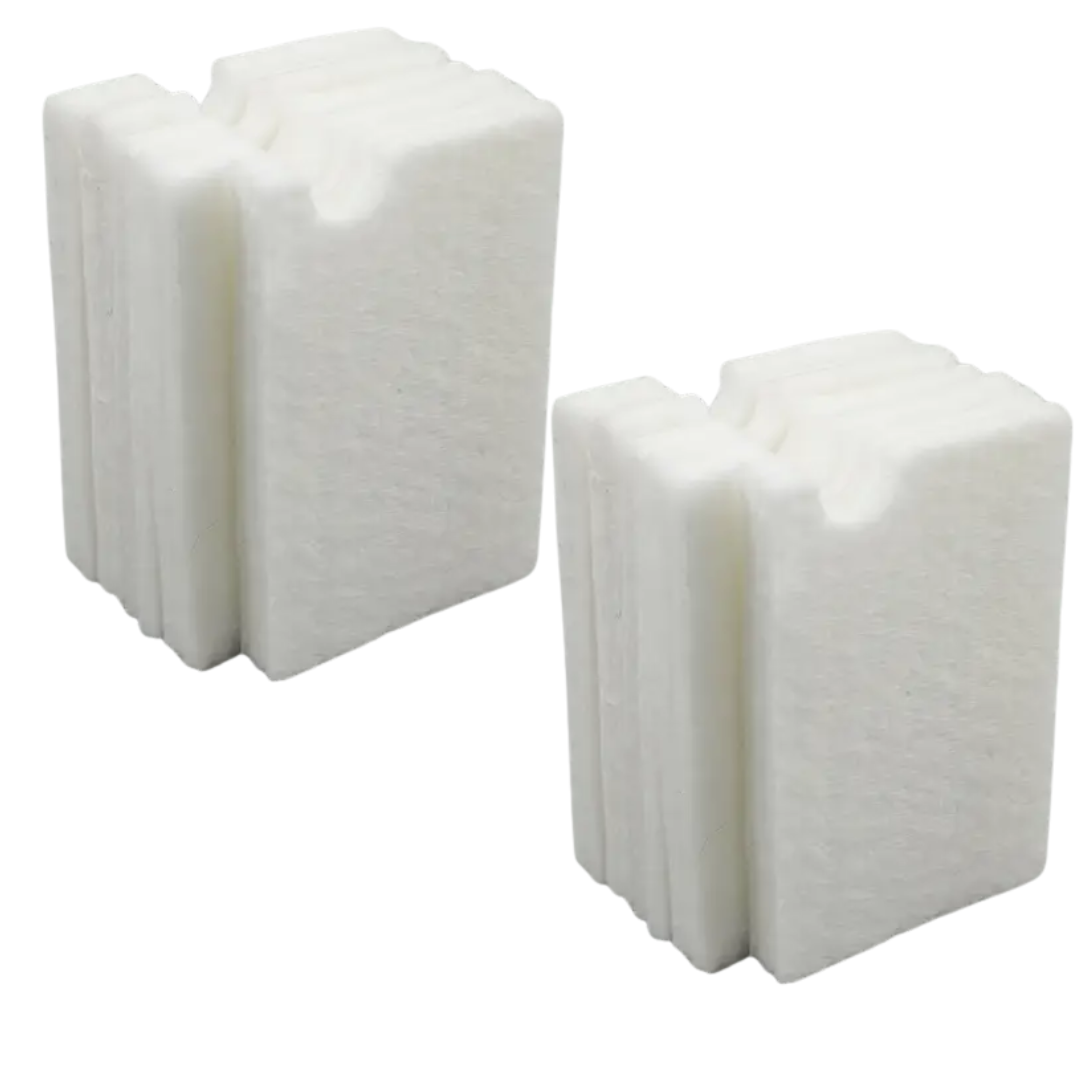
2pc Epson Waste Ink Absorbent Sponge Replacement Pad for L-Series & EcoTank

2pc Epson Waste Ink Absorbent Sponge Replacement Pad for L-Series & EcoTank

Keep your Epson printer performing at its best with this high-efficiency sponge-style waste ink pad, designed specifical…
No reviews yet
R 64.00R 74.70
🚚 Ships in 3-5 work days

Keep your Epson printer performing at its best with this high-efficiency sponge-style waste ink pad, designed specifically for use in Epson L-Series models. Ideal for DIY maintenance, this replacement...

🛡️
Warranty
Non-Returnable.

Product Information

SKU100042045
Stock StatusIn Stock
Safe Checkout

Keep your Epson printer performing at its best with this high-efficiency sponge-style waste ink pad, designed specifically for use in Epson L-Series models. Ideal for DIY maintenance, this replacement pad absorbs excess ink during printhead cleaning cycles, helping to prevent messy leaks and prolong printer life.

This version includes only the absorbent sponge (no plastic casing), making it ideal for advanced users replacing internal sponge layers inside existing ink pads or custom maintenance boxes.

Compatible Printer Models:

This universal waste ink pad fits most entry and mid-level Epson EcoTank printers, including:

  • L-Series:
    L1250, L3110, L3111, L3150, L3151, L3156
    L3210, L3250, L3251
    L1110, L120, L130, L220, L382, L385, L486
  • EcoTank (ET) Series:
    ET-1250 (L1250), ET-2800, ET-2803, ET-2400, ET-2720, ET-2711, ET-2700, ET-2750
    ET-4700, ET-2710, ET-2600
If your printer is part of the L-series or ET-series using similar tanks, it's very likely compatible.
Fits most Epson printers using similar pad dimensions-please check your original pad for compatibility.

Product Highlights:

  • High Absorbency Sponge: Effectively soaks up excess ink from cleaning and maintenance operations
  • Carbon Fiber-Look Surface: Durable texture with a premium aesthetic
  • No Electronics Required: Purely mechanical-no batteries, no wiring
  • Eco-Friendly & Reusable Option: Some users wash and reuse these pads as a temporary fix
  • Great for DIY Maintenance: Ideal for replacing old, saturated sponges inside waste ink boxes

Important Note:

This is not a complete maintenance box - it is the sponge insert only. You may need to manually open your printer's internal ink waste section to replace or supplement the original sponge.

After replacing the sponge, use the WIC Reset Utility to clear the printer's "Ink Pad Full" error. One free trial reset is included via the WIC software.

How to Reset the Ink Pad Counter

Even after replacing the pad, you'll need to reset the internal counter that tracks ink saturation. Here's how:

  1. Download the WIC Reset Utility from the official WIC website.
  2. Install and run on Windows or macOS.
  3. Connect your printer via USB and power it on.
  4. Select "Reset Waste Ink Counter".
  5. Purchase and enter the reset key (~$9.99). Free Option: Use the FREE TRIAL RESET first - this allows one free reset per printer (great if you're only doing this once or occasionally) Use the word "Trial" as reset key.
    Otherwise, full permanent resets require a reset key, available online for around $10.
  6. Click Reset, then power-cycle the printer after the software confirms.
  7. Turn printer off, unplug for 5 minutes, then restart-error should clear.
    Note: Use only after replacing the physical pad to prevent leaks

What's in the box
2pc Waste Ink Absorbent Sponge (no plastic case)

Keep your Epson printer performing at its best with this high-efficiency sponge-style waste ink pad, designed specifically for use in Epson L-Series models. Ideal for DIY maintenance, this replacement pad absorbs excess ink during printhead cleaning cycles, helping to prevent messy leaks and prolong printer life.

This version includes only the absorbent sponge (no plastic casing), making it ideal for advanced users replacing internal sponge layers inside existing ink pads or custom maintenance boxes.

Compatible Printer Models:

This universal waste ink pad fits most entry and mid-level Epson EcoTank printers, including:

  • L-Series:
    L1250, L3110, L3111, L3150, L3151, L3156
    L3210, L3250, L3251
    L1110, L120, L130, L220, L382, L385, L486
  • EcoTank (ET) Series:
    ET-1250 (L1250), ET-2800, ET-2803, ET-2400, ET-2720, ET-2711, ET-2700, ET-2750
    ET-4700, ET-2710, ET-2600
If your printer is part of the L-series or ET-series using similar tanks, it's very likely compatible.
Fits most Epson printers using similar pad dimensions-please check your original pad for compatibility.

Product Highlights:

  • High Absorbency Sponge: Effectively soaks up excess ink from cleaning and maintenance operations
  • Carbon Fiber-Look Surface: Durable texture with a premium aesthetic
  • No Electronics Required: Purely mechanical-no batteries, no wiring
  • Eco-Friendly & Reusable Option: Some users wash and reuse these pads as a temporary fix
  • Great for DIY Maintenance: Ideal for replacing old, saturated sponges inside waste ink boxes

Important Note:

This is not a complete maintenance box - it is the sponge insert only. You may need to manually open your printer's internal ink waste section to replace or supplement the original sponge.

After replacing the sponge, use the WIC Reset Utility to clear the printer's "Ink Pad Full" error. One free trial reset is included via the WIC software.

How to Reset the Ink Pad Counter

Even after replacing the pad, you'll need to reset the internal counter that tracks ink saturation. Here's how:

  1. Download the WIC Reset Utility from the official WIC website.
  2. Install and run on Windows or macOS.
  3. Connect your printer via USB and power it on.
  4. Select "Reset Waste Ink Counter".
  5. Purchase and enter the reset key (~$9.99). Free Option: Use the FREE TRIAL RESET first - this allows one free reset per printer (great if you're only doing this once or occasionally) Use the word "Trial" as reset key.
    Otherwise, full permanent resets require a reset key, available online for around $10.
  6. Click Reset, then power-cycle the printer after the software confirms.
  7. Turn printer off, unplug for 5 minutes, then restart-error should clear.
    Note: Use only after replacing the physical pad to prevent leaks

What's in the box
2pc Waste Ink Absorbent Sponge (no plastic case)

More in Drum Units