Desktop computers use rear USB ports.
Insufficient power supply is a major reason why many external hard drives are not recognized. Do not use extension cables or hubs when using the hard drive. Some desktop computers primarily use the USB ports on the back of the computer; the USB ports on the front of the computer are only equivalent to USB extension cables, and the power supply may be insufficient. Insufficient power supply will reduce the hard drive's read and write performance, and this is a major cause of data corruption. Do not read or write files in this situation; please pay close attention!
Safely eject after use.
After connecting the external hard drive to the computer, a plug-and-play device will appear in the lower right corner of the taskbar. Before disconnecting, be sure to close all programs and file windows related to the hardware. Click on the plug-and-play device in the lower right corner, select the external hard drive to remove it, and then disconnect it. (Note: Due to poor system or software issues on some computers, the hardware may not be effectively removed. In this case, you can only disconnect it directly, but you must reconnect it once and then perform a normal removal to restore the hard drive's head position.)
Do not move or relocate during use.
External hard drives are "mobile storage devices," but the built-in hard drive is still rotating at high speed during and after use. When in use, please keep it as flat as possible, and do not move or relocate it. Absolutely do not flip the external hard drive while it is in use! Also, avoid moving or relocating the hard drive for a short time after disconnecting it to prevent fatal damage to the hard drive's heads.
Prevent drops.
External hard drives are not USB flash drives. Be careful not to bump the external hard drive case. Dropping it may cause damage to the hard drive.
What's in the box
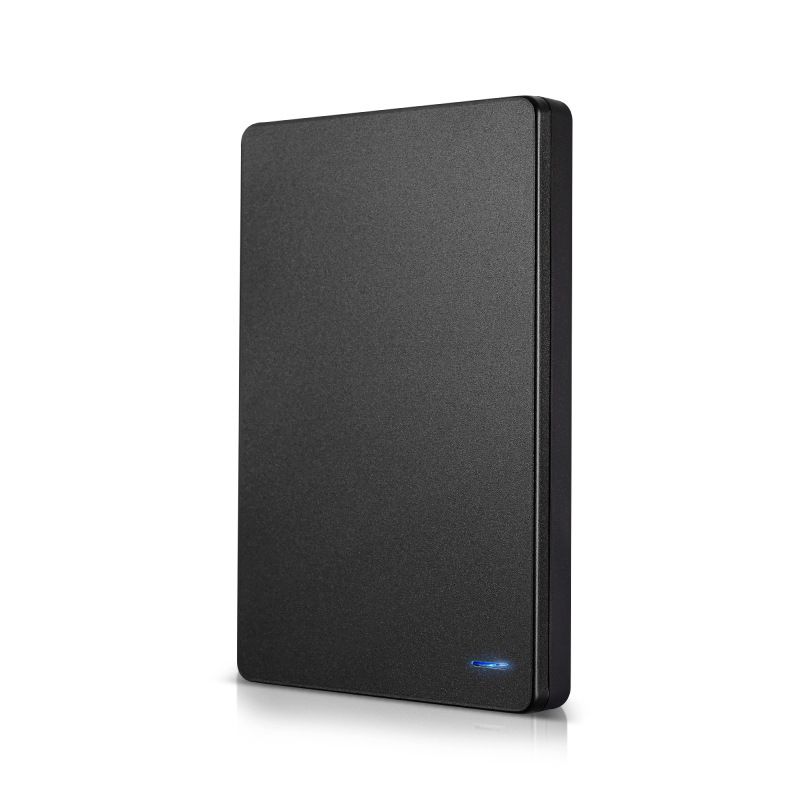
1 X 250GB Portable External Hard Drive