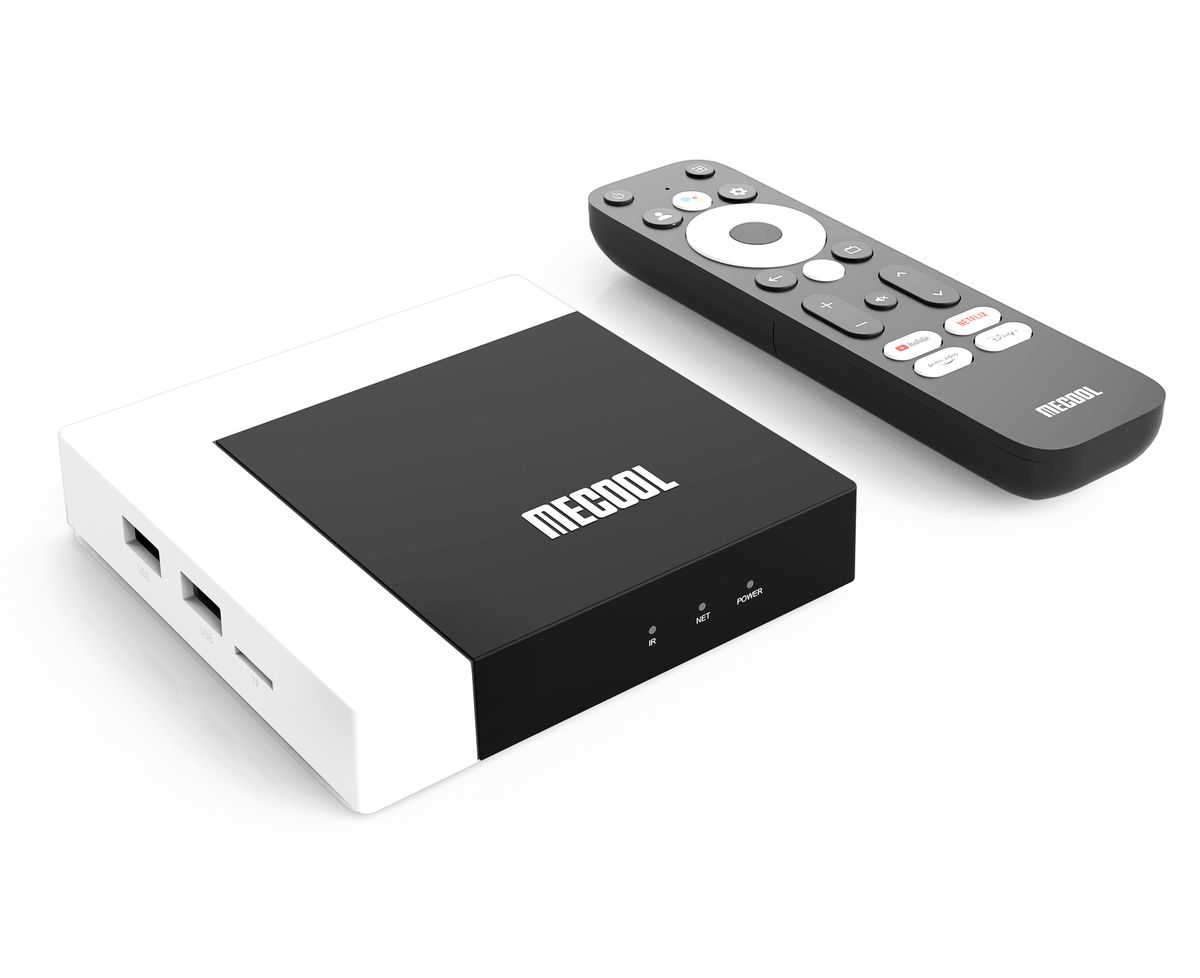
Smart TV Box,Android 14, Media Player,WiFi 6 2GB/16GB 4K HD Network TV Box

Smart TV Box,Android 14, Media Player,WiFi 6 2GB/16GB 4K HD Network TV Box

Supports 4K, 16GB,Voice Calls, WiFi 6, USB 3.0, Chrome Android TV Set-Top Box
No reviews yet
R 74.48
🚚 Ships in 4-6 work days

Supports 4K, 16GB,Voice Calls, WiFi 6, USB 3.0, Chrome Android TV Set-Top Box

🛡️
Warranty
6-Month Limited Warranty.
↩️
Return Policy
Hassle-Free Exchanges & Returns for 7 Days.

Product Information

SKU102699828
Stock StatusIn Stock
Safe Checkout

This 96Q RK3518 quad-core set-top box runs on Android 14 and supports Wi-Fi 6, 100M Ethernet, 2GB of RAM and 16GB of storage. It is a TV box that combines the functions of a smart TV and a streaming media player.

Specifications:

CPU: RK3518 quad-core Cortex-A53

GPU: ARM Mali-450 GPU, supporting OpenGL ES 1.1/2.0 and OpenVG 1.1

Power Supply: 5V/2A

Operating System: Android 14.0

RAM: 2GB

Storage: 16GB

Includes:

Smart TV box x 1 (adapter not included)

HD cable x 1

Remote control x 1

User manual x 1

Packaging box x 1

Frequently Asked Questions

Unable to power on or initialise

1. Symptom: After pressing the power button, the indicator light does not illuminate and the screen shows no response.

2. Solution:

Check the power connection: Ensure the power adapter (not included) is correctly connected to the device and the mains socket. Try using a different socket.

Check the power cable: Check if the power cable is damaged. If damaged, replace it with a working power cable.

Restart the device: Unplug the power adapter (without the adapter), wait 1-2 minutes, then reconnect it and switch on the device. This is a standard troubleshooting method for electronic devices.

3. Symptom: The indicator light is on, but the system is unresponsive and stuck on the start-up screen (logo screen).

4. Solution:

Force restart: Hold down the power button on the set-top box for more than 10 seconds to force a shutdown, then restart the device.

Factory reset: If the forced restart fails, try entering recovery mode to perform a factory reset. Typical steps are as follows: Disconnect the power -> Hold down the reset button or designated button (e.g. the menu button) on the set-top box -> Reconnect the power -> Release the button once the recovery mode interface appears, then use the remote control to select 'Wipe data/factory reset'. Note: This operation will delete all installed applications and personal data!

System Update: If the factory reset fails, the system files may be corrupted. Please locate the firmware corresponding to your model and update the system.

Network Connection Issues

1. Symptoms: Unable to connect to Wi-Fi or a wired network; a "Network connection failed" message is displayed.

2. Solutions:

Check network settings: Ensure your Wi-Fi password is correct, including upper and lower case letters. If using a wired connection, check that the Ethernet cable is connected properly.

Restart the router and set-top box: This is one of the most effective ways to resolve network issues. Switch off the router and set-top box, wait for one minute, then restart them one at a time.

Check the IP address: In the network settings, confirm that the set-top box is set to "Obtain an IP address automatically" (DHCP). If configured manually, the IP address may conflict with other devices.

Signal strength issues: If using Wi-Fi, being too far from the router or having multiple walls between devices can cause a weak signal. Try moving closer to the router, or use a wired connection for more stable speeds.

What's in the box
1 x Android TV Box
1 x IR Remote Control

This 96Q RK3518 quad-core set-top box runs on Android 14 and supports Wi-Fi 6, 100M Ethernet, 2GB of RAM and 16GB of storage. It is a TV box that combines the functions of a smart TV and a streaming media player.

Specifications:

CPU: RK3518 quad-core Cortex-A53

GPU: ARM Mali-450 GPU, supporting OpenGL ES 1.1/2.0 and OpenVG 1.1

Power Supply: 5V/2A

Operating System: Android 14.0

RAM: 2GB

Storage: 16GB

Includes:

Smart TV box x 1 (adapter not included)

HD cable x 1

Remote control x 1

User manual x 1

Packaging box x 1

Frequently Asked Questions

Unable to power on or initialise

1. Symptom: After pressing the power button, the indicator light does not illuminate and the screen shows no response.

2. Solution:

Check the power connection: Ensure the power adapter (not included) is correctly connected to the device and the mains socket. Try using a different socket.

Check the power cable: Check if the power cable is damaged. If damaged, replace it with a working power cable.

Restart the device: Unplug the power adapter (without the adapter), wait 1-2 minutes, then reconnect it and switch on the device. This is a standard troubleshooting method for electronic devices.

3. Symptom: The indicator light is on, but the system is unresponsive and stuck on the start-up screen (logo screen).

4. Solution:

Force restart: Hold down the power button on the set-top box for more than 10 seconds to force a shutdown, then restart the device.

Factory reset: If the forced restart fails, try entering recovery mode to perform a factory reset. Typical steps are as follows: Disconnect the power -> Hold down the reset button or designated button (e.g. the menu button) on the set-top box -> Reconnect the power -> Release the button once the recovery mode interface appears, then use the remote control to select 'Wipe data/factory reset'. Note: This operation will delete all installed applications and personal data!

System Update: If the factory reset fails, the system files may be corrupted. Please locate the firmware corresponding to your model and update the system.

Network Connection Issues

1. Symptoms: Unable to connect to Wi-Fi or a wired network; a "Network connection failed" message is displayed.

2. Solutions:

Check network settings: Ensure your Wi-Fi password is correct, including upper and lower case letters. If using a wired connection, check that the Ethernet cable is connected properly.

Restart the router and set-top box: This is one of the most effective ways to resolve network issues. Switch off the router and set-top box, wait for one minute, then restart them one at a time.

Check the IP address: In the network settings, confirm that the set-top box is set to "Obtain an IP address automatically" (DHCP). If configured manually, the IP address may conflict with other devices.

Signal strength issues: If using Wi-Fi, being too far from the router or having multiple walls between devices can cause a weak signal. Try moving closer to the router, or use a wired connection for more stable speeds.

What's in the box
1 x Android TV Box
1 x IR Remote Control